The FatesForge overlay already works on stream. There is no streamer mode to turn on and nothing to configure in the tracker. Each overlay panel is an ordinary window, so OBS can capture it like any other window.
Before you start
OBS 28 or newer. Older versions throw away the overlay's transparency and you will get a black box instead of a panel. OBS 28 came out in 2022, so if you have updated in the last couple of years you are fine.
Start a match first. The overlay only exists while you are in a game, so OBS has nothing to list until then. Queue up, then come back to OBS.
Add the sources
In OBS, click + under Sources and choose Window Capture. Then set these three fields:
- Window:
FatesForge Overlay - My Deck - Capture Method:
Windows 10 (1903 and up), calledModern (WGC)in OBS 33 and newer - Window Match Priority:
Window title must match
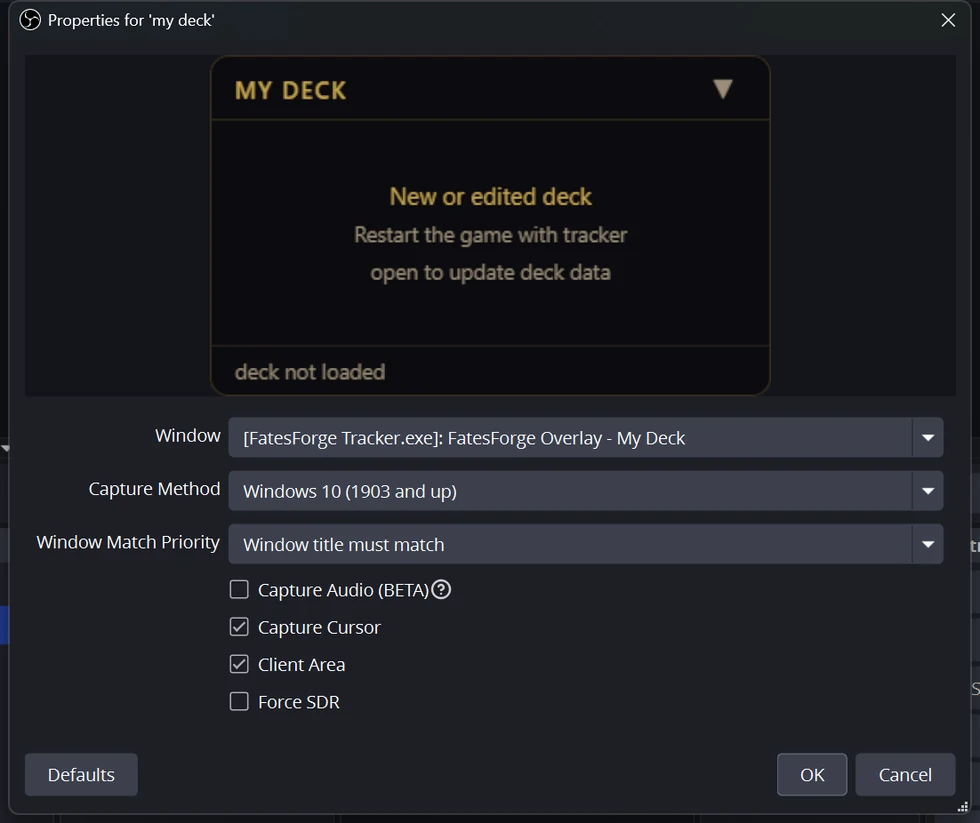
Click OK, then repeat for the other windows:
FatesForge Overlay - Opponent: the cards your opponent has played. With PRO it also lists the cards they are still likely to have; the − button folds that list away if you would rather not show it on streamFatesForge Overlay - Card Preview: the big card image that appears when you hover one in a panelFatesForge Overlay - Your Hand(PRO): keep or recycle advice for your hand. It only appears while you are choosing, at the opening mulligan and each recycle
Drag each one where you want it in your scene. Each source is exactly its panel, so there is nothing to crop.
Why Game Capture will not work
This is the thing that catches everyone, so it is worth being blunt: Game Capture cannot show the overlay, at any setting. Game Capture takes the picture the game itself draws, and the overlay is not part of that picture. It is a separate window sitting on top. OBS blocks Game Capture for this kind of window outright.
Use Window Capture, as above. Display Capture also works if you would rather film the whole screen, and it keeps the panels exactly where they are on your desktop.
Things that look broken but are not
- The sources go blank between matches. The panels only exist during a game. They come back on their own when the next match starts.
- The card preview is usually empty. It only shows something while you are hovering a card. Put it somewhere your viewers will learn to look. It does not have to sit next to the deck panel on stream. The Your Hand panel works the same way: it is only on screen while you are choosing which cards to keep.
- You see a black box instead of a panel. The capture method is wrong. Open
the source's properties and set it to
Windows 10 (1903 and up). - The window is not in the list. You are not in a match yet, or the properties window was open before the match began. Close and reopen it.
Getting it out of the way
Press Ctrl+Shift+F to hide every panel, and again to bring them back. The game keeps focus, so you can use it mid-match.
You can also drag a panel by its title bar or by the strip along the bottom, and resize them in the tracker under Settings → Overlay → Panel size.
Not using the tracker yet?
FatesForge tracks your matches, your deck and your win rates. Free, Windows, no account required.
Download FatesForge